A useful setup for react site owners begins with the information visitors need and the handoff the team can reliably cover.
Install website chat on a React site: setup in practice
Test the install website chat on a react site experience
A booking marketplace can answer general provider questions but should leave live slot availability to its booking system.
Source and next step for install website chat on a react site
The install website chat on a react site workflow should cite approved information and identify who can confirm an open detail.
Install website chat on a React site launch owner
Your chosen reply channel
A named teammate owns the install website chat on a react site install and reply path.
Check Slack beta access before routing install website chat on a react site requests there.
Installation steps
- 1
Copy the site snippet
Copy the complete snippet from the Install page.
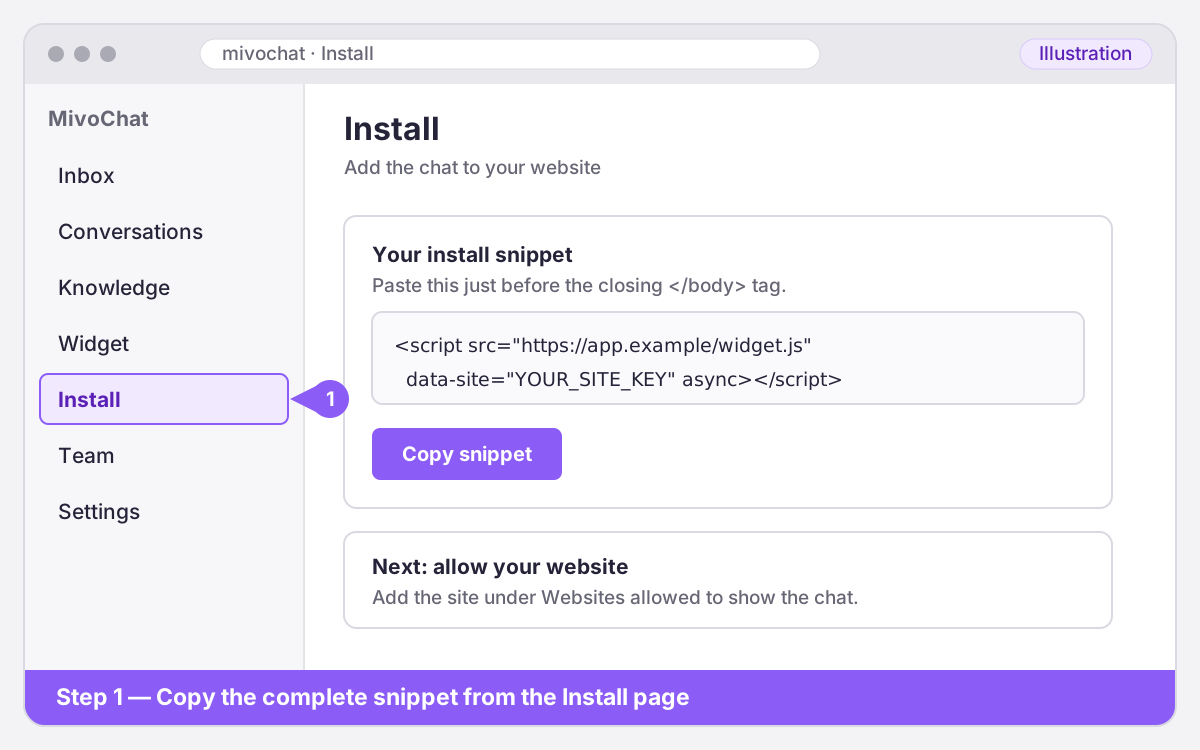
Illustration — your screen may look slightly different. - 2
Add it to the HTML shell
For Vite, paste it in `index.html` immediately before `</body>`. For Create React App, add it to `public/index.html`. For Remix or React Router, put it in the root `root.tsx` `<body>`.
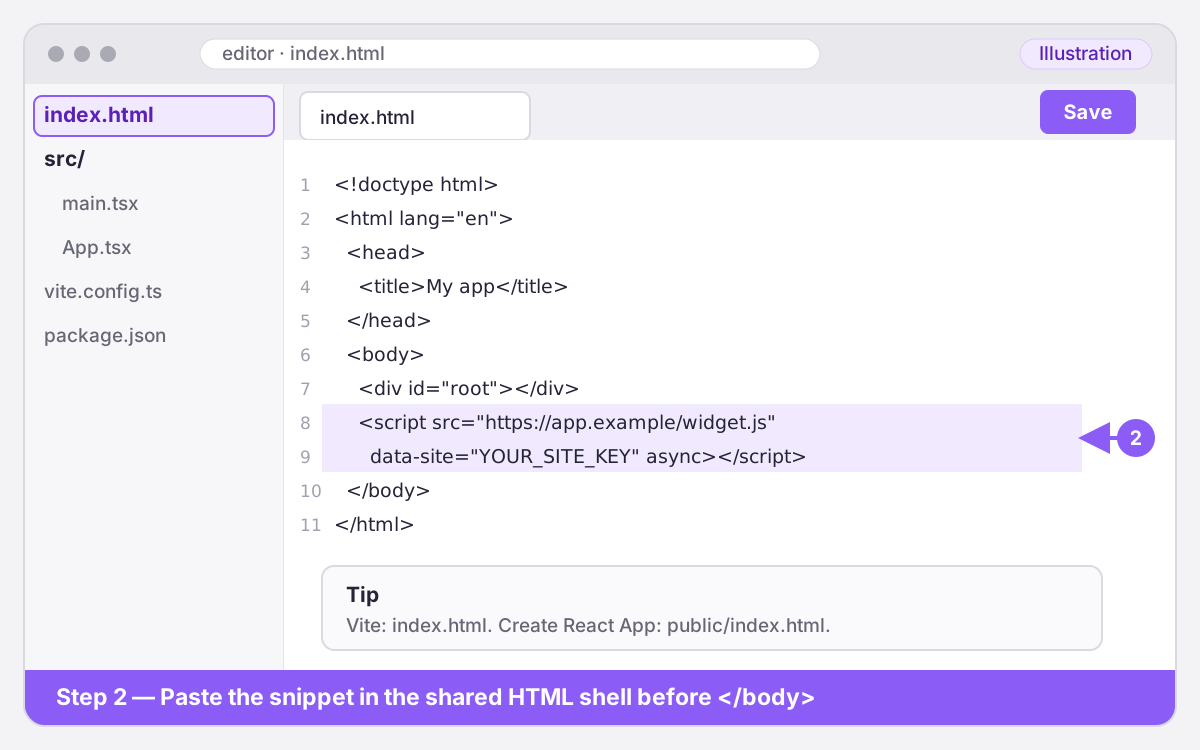
Illustration — your screen may look slightly different. - 3
Deploy and test
Add the deployed origin to MivoChat's allowed websites.
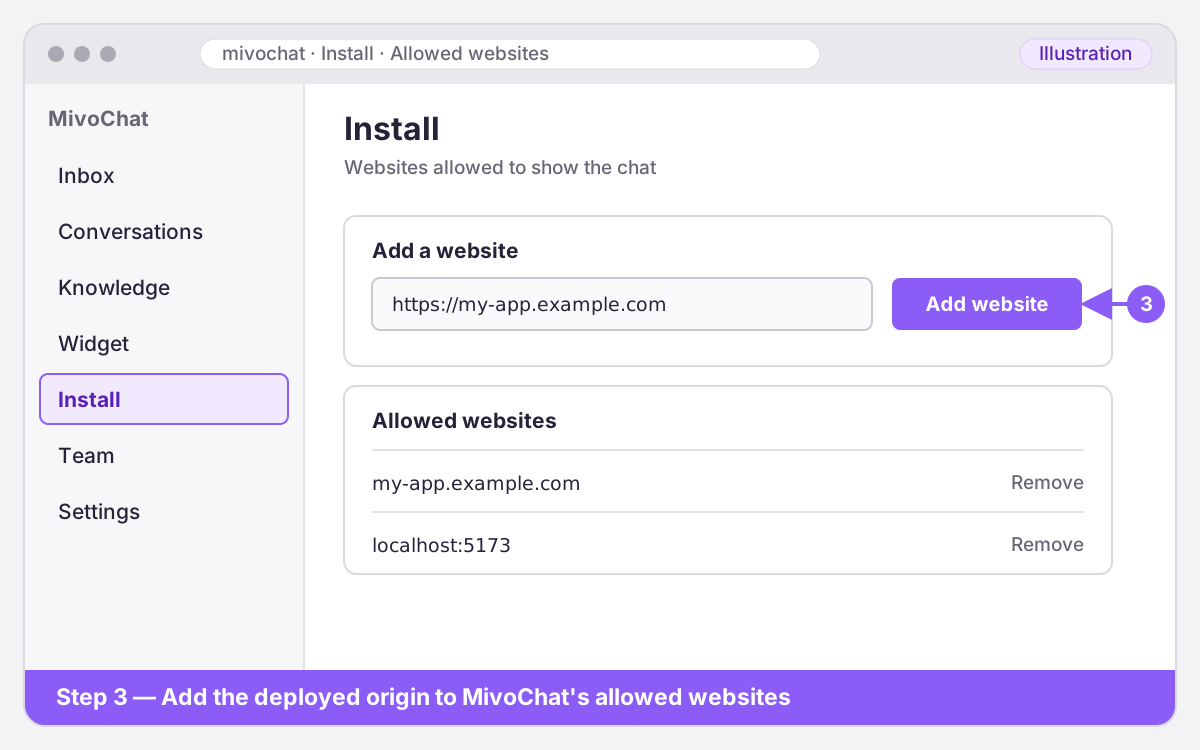
Illustration — your screen may look slightly different. - 4
Step 4
Set your content security policy to permit the MivoChat app origin in `script-src`, `frame-src`, and `connect-src`; those directives cover the loader, embedded chat, and its API requests.
- 5
Step 5
Deploy and test the published app, including navigation between routes, a visitor message, and a team reply.
Before you start on React site owners
Use the shared HTML shell so the loader runs once instead of being re-added whenever React renders a component.
For a React app, identify its shared HTML shell so the widget script is loaded once across client-side navigation.
- You know whether your React site is Vite, Create React App, or another framework.
- The widget loader is inserted once in the shared app shell.
- The production domain is allow-listed and can load the script under any CSP rules.
- A deployed build can be checked before customers rely on it.
Step-by-step React site owners setup
Install the snippet in the framework's shared document and confirm it survives client-side route changes.
- Copy the complete snippet from the Install page.
- For Vite, paste it in `index.html` immediately before `</body>`. For Create React App, add it to `public/index.html`. For Remix or React Router, put it in the root `root.tsx` `<body>`.
- Add the deployed origin to MivoChat's allowed websites.
- Set your content security policy to permit the MivoChat app origin in `script-src`, `frame-src`, and `connect-src`; those directives cover the loader, embedded chat, and its API requests.
- Deploy and test the published app, including navigation between routes, a visitor message, and a team reply.
Domains and content security policy for React site owners
Register the deployed React app's origin in MivoChat's allowed websites before checking the widget.
For CSP, allow the MivoChat app origin in `script-src`, `frame-src`, and `connect-src` so the loader, chat frame, and API calls can run.
Test on your published React site owners site
Check the deployed React app in a normal browser tab so the widget receives the app's real origin.
Troubleshooting React site owners installation
If the React widget does not appear, inspect the shared HTML shell for the script and check the browser console for origin or CSP errors.
Frequently asked questions
Does MivoChat install automatically on every platform?
For React site owners, use the installation path described above and check the platform’s current settings if labels change.
Can MivoChat confirm bookings or availability?
For react site owners, MivoChat can show an external booking link or collect a request, but it does not sync calendars or confirm availability; staff must review the request.
How do I know the installation worked?
On React site owners, test the published site from a private browser window. Check the launcher, send a visitor message, confirm it reaches the chosen team inbox, and reply to verify both directions.